Physical Address!
Globlar OÜ Harjumaa Tallinn, Estonia!
Physical Address!
Globlar OÜ Harjumaa Tallinn, Estonia!

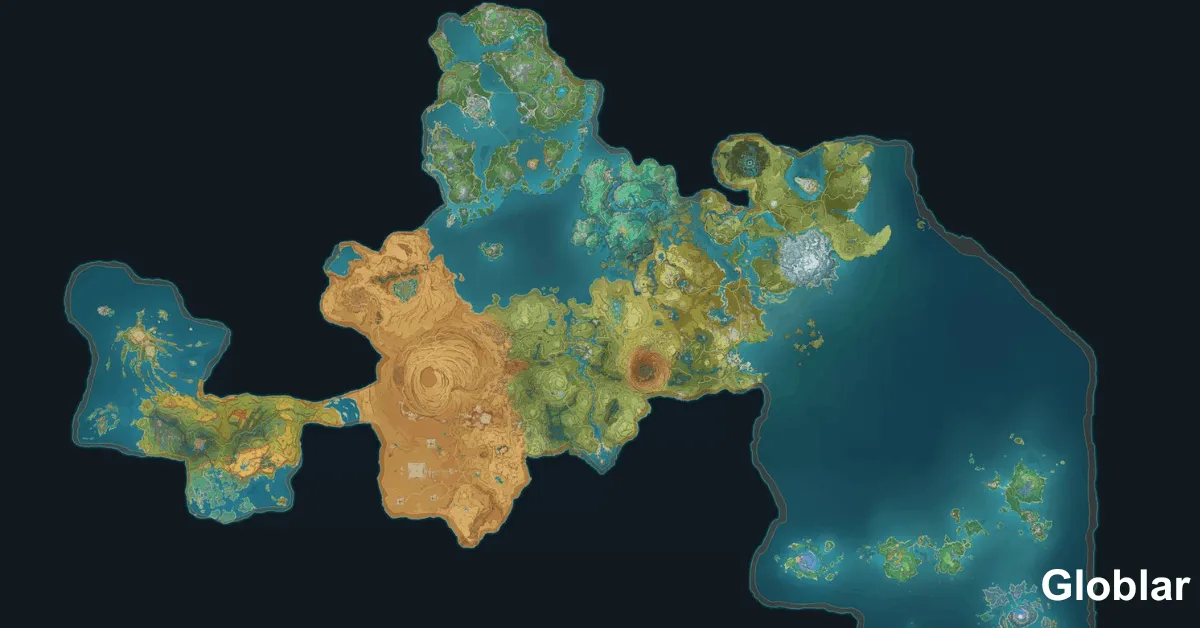
You’ve been wandering Teyvat for hours. You know that Exquisite Chest is somewhere near the cliffside in Mondstadt. You’ve checked three times. It’s still not there.
Sound familiar?
Here’s the truth most beginners don’t realize: Genshin Impact doesn’t have to feel like a scavenger hunt in the dark. The Genshin interactive map when properly synced with your game completely transforms the way you explore farm and progress. It’s the tool that separates casual players from Travelers who actually hit 100% exploration.
This guide is going to show you everything. Not just how to open the map. How to sync it use it like a pro and troubleshoot it when things go wrong and squeeze every last drop of value out of it on PC and mobile, PlayStation.
Let’s get into it.
The Genshin interactive map is an external online tool officially maintained by HoYoverse via HoYoLAB that displays the entire world of Teyvat with detailed searchable markers for nearly every item, enemy, chest, puzzle and resource in the game.
Without it finding a specific Naku Weed hunting down the last Electroculus in Inazuma or figuring out where that one missing Common Chest is hiding becomes an exercise in frustration. With it you have a real-time reference that tells you exactly where to go.
And crucially it lets you sync your own in-game pins mark what you’ve collected and track your progress across sessions. That’s the feature we’re going to focus on.
Before we get into the sync guide you need to know that there are actually several interactive map here so you know which one to use:
| Map | Official? | Sync with Game? | Cross-Device Progress? | Best For |
| HoYoLAB Map | ✅ Yes | ✅ Yes (in-game pins) | ✅ Yes (account-based) | General use officially updated |
| MapGenie | ❌ No | ❌ No auto-sync | ✅ Yes (account-based) | Chest hunting 100% completion |
| genshininteractivemap.us | ❌ No | ❌ No | ✅ Yes (account-based) | Fast loading clean UI |
| Sportskeeda Map | ❌ No | ❌ No | ❌ No | Quick reference only |
The verdict: HoYoLAB’s official map is the only one with real in-game pin sync. For total coverage and chest hunting MapGenie fills the gaps. Smart Travelers use both.
There are three ways to access the interactive map:
This is the section most guides get wrong or skip entirely. Here’s the real breakdown.
There are two types of sync you’ll hear about:
Here’s the important caveat that nobody tells you upfront: Genshin Impact does NOT automatically sync which chests you’ve opened or which Oculi you’ve collected to the interactive map. You still need to manually mark things as collected. The in game pin sync only brings your custom placed pins not your exploration state.
That said here’s how to set it all up properly.
Go to hoyolab.com and either sign in or create a free account. You can use your existing Genshin Impact login (UID + HoYoverse account) to sign in this links your game account to your HoYoLAB profile.
If you don’t have a HoYoverse account yet register for free. It takes two minutes and unlocks check-ins the interactive map daily rewards and more.
Once logged in navigate to the Teyvat Interactive Map at map.hoyolab.com. You should see your account avatar in the top right corner confirming you’re signed in.
Being logged in is essential it’s what allows the cross-device progress saving and the in game pin sync to work.
This is the feature most guides bury or miss entirely.
Inside Genshin Impact on your PC or mobile device:
Now go back to the HoYoLAB interactive map in your browser. Click the My Pins button in the left sidebar. Your in game pins should now appear on the HoYoLAB map synced from your game client.
Note: Sync may take a few minutes to reflect. If pins don’t appear log out and back into HoYoLAB then refresh the map.
The interactive map’s real power for exploration tracking is the manual mark system. Here’s how to use it:
Repeat this as you collect items. Over time what’s left on the map = what you still need. This is how dedicated players hit 100% exploration.
Because your marks and custom pins are tied to your HoYoLAB account they automatically sync across all your devices. Log into HoYoLAB on your phone while playing on PS5 and all your saved progress is there.
Let’s address the elephant in the room because this is something the Genshin community has been vocal about for years.
Players have long requested that HoYoverse implement automatic chest and puzzle sync similar to how some other live service games handle external companion apps. As of 2025 this feature still doesn’t exist in the official HoYoLAB map, though materials farming is partially reflected through the character planner integration.
The workaround? Make it a habit: every time you open a chest or collect an Oculus flip to your map tab and mark it immediately. It takes five seconds and saves hours of backtracking later.
The HoYoLAB map has a built-in route creation tool that most players never touch. Here’s how:
This turns chaotic farming runs into efficient repeatable loops.
Showing every single marker on the map simultaneously is overwhelming. Instead:
Clean view = faster farming.
HoYoLAB’s map lists around 505 Exquisite Chests. MapGenie lists nearly 967. If you’re going for 100% exploration or hunting missing chests MapGenie fills the gap. Use HoYoLAB as your primary (for sync and pins) and MapGenie as your secondary (for total chest coverage).
If you’re already using HoYoLAB for daily check-ins (which you should be free Primogems) you’re one tap away from the map at all times. This makes it effortless to check a location mid-session.
Many markers on the HoYoLAB map have community submitted photos showing exactly where the item is from camera angle. If you’re struggling to find a specific chest or Oculus click the marker and check for submitted photos they’re often more helpful than the map pin alone.
Yes the official HoYoLAB interactive map is completely free. You don’t need any paid subscription to access it mark items create routes or sync your pins. Creating a HoYoLAB account is also free.
No. The Genshin interactive map does not automatically detect which chests you’ve opened. You need to manually mark chests as collected after you open them. This is one of the most requested features from the community but it hasn’t been implemented yet.
You can’t run the map inside your PlayStation console but you can access it on a phone or tablet using the HoYoLAB app while you play. Log into the same HoYoLAB account and all your progress marks and pins will be there.
The HoYoLAB map is the official one from HoYoverse supports in-game pin sync and is always up-to-date with new patches. MapGenie is a third-party map with more chest locations listed (nearly double in some categories) and a 100% completion checklist. Both are free; many experienced players use both.
Make sure you’re logged into the same HoYoverse account on both the game and HoYoLAB. Pin sync can take a few minutes. Try logging out of HoYoLAB and back in then refreshing the map page. Also confirm that the “My Pins” filter is enabled on the map.
Yes. The HoYoLAB interactive map is updated by HoYoverse alongside each major game version. New regions, enemies and collectibles are typically added within a few days of a new patch going live.
On the HoYoLAB map you can share custom locations with friends who also have accounts. MapGenie’s Pro membership allows more advanced location sharing. If you’re gaming with a static group setting up a shared reference system using HoYoLAB pins is a great way to coordinate farming routes.
The Genshin interactive map isn’t just a nice-to-have. For anyone who’s serious about exploration efficient farming or simply not losing hours to aimless wandering it’s essential.
The key takeaway from this guide:
Whether you’re a brand-new Traveler just unlocking Mondstadt or a veteran chasing the last Hydroculus in Fontaine the interactive map is the single tool that makes Teyvat feel conquerable rather than overwhelming.
Now go open that chest you’ve been looking for. You know where it is.
Have questions about the interactive map or a tip that’s changed your exploration game? Drop it in the comments below we read every one.
Written By globlar.com | Author: Majid Ishfaq!

Comments are closed.







[…] the next time a game feature and betting app or in-game purchase looks completely different for someone across the Atlantic. […]